
In today’s digital age, many of us spend long hours at desks—working, studying, or even gaming. But sitting for extended periods, especially at an improperly set-up workstation, can lead to a range of physical issues: neck stiffness, lower back pain, carpal tunnel syndrome, and even chronic postural problems.
As physiotherapists, we often see these complaints in the clinic. The good news? Many of them are preventable. With the right ergonomic setup, you can protect your body and improve both comfort and productivity.
 Here’s a physiotherapist-approved guide to setting up an ergonomic workstation—from head to toe.
1. Start with Your Chair
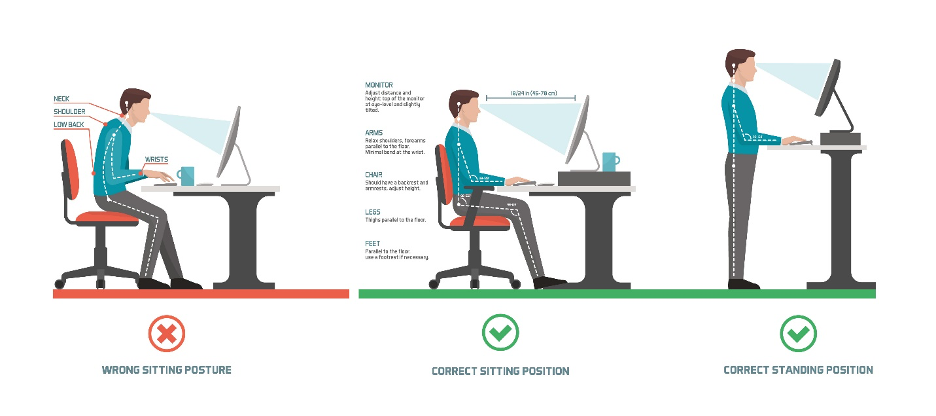
Your chair is the foundation of your workstation. You should be able to sit with your:
- Feet flat on the floor (or on a footrest)
- Knees bent at about 90 degrees
- Hips slightly higher than your knees
Physio Tips:
- Use lumbar support. If your chair doesn’t have built-in support, roll up a towel and place it behind your lower back to maintain your spine’s natural curve.
- Adjust the height. Your thighs should be parallel to the floor. If you’re short and can’t reach the floor, use a footrest or a sturdy box.
- Sit back. Avoid perching on the edge. Your back should be supported by the chair.
2. Desk and Keyboard Position
Your desk height and keyboard setup play a huge role in preventing wrist, shoulder, and neck strain.
- Elbows should be at 90 degrees, close to your body
- Forearms parallel to the floor
- Wrists in a neutral (straight) position when typing
Physio Tips:
- Use a keyboard tray if your desk is too high.
- Consider a split or ergonomic keyboard if you type a lot or have wrist issues.
- Don’t let your wrists rest on the desk or keyboard while typing. Use a soft wrist pad if needed.
3. Monitor Height and Distance
If your monitor isn’t properly aligned, you may unknowingly crane your neck forward or tilt your head up or down—leading to neck and upper back pain.
- The top of the screen should be at or just below eye level
- The monitor should be about an arm’s length away
Physio Tips:
- Use books or a monitor riser to elevate the screen if needed.
- If you use dual monitors, place the primary screen directly in front of you and the secondary off to the side—unless you use both equally, in which case center them.
- Avoid working off a laptop only. If that’s your setup, invest in an external keyboard and mouse and raise the laptop to eye level.
4. Mouse and Input Devices
A poorly placed mouse can cause wrist strain and shoulder fatigue.
- Keep the mouse close to the keyboard
- Your hand should move the mouse—not your whole arm or shoulder
- Keep your wrist in a neutral position, not bent upward or to the side
Physio Tips:
- Consider an ergonomic mouse (vertical or trackball) if you experience wrist discomfort.
- Switch hands occasionally if possible to reduce overuse.
5. Lighting and Glare
Physio Tips:
- Position your workstation perpendicular to windows to reduce glare.
- Use task lighting for paperwork.
- Adjust your monitor’s brightness and contrast to match ambient lighting.
6. Take Regular Breaks
Even the best setup won’t help if you don’t move. Our bodies are designed to move—not stay frozen in one position for hours.
Physio Tips:
- Follow the 20-20-20 rule: Every 20 minutes, look at something 20 feet away for at least 20 seconds to reduce eye strain.
- Stand up and stretch at least once every 30–60 minutes.
- Consider a sit-stand desk if you can, but remember: standing all day isn’t the solution either—movement is key.
7. Posture Check: The Physio Golden Rule
It’s easy to forget posture when you’re in the flow. Set a reminder to do a quick self-check:
- Head aligned with your shoulders (not jutting forward)
- Shoulders relaxed, not hunched
- Back supported
- Wrists and elbows relaxed
- Feet grounded
Bonus: Physio-Approved Desk Stretches
Try these:
- Neck rolls: Slowly roll your neck in a circle 3–5 times each direction
- Shoulder shrugs: Lift and roll your shoulders backward 10 times
- Seated spinal twist: Rotate gently to each side, holding for 10–15 seconds
- Wrist stretches: Gently pull back each hand to stretch the wrist and forearm

productivity. While each body is different, these physiotherapy-backed guidelines provide a strong foundation.